> For the complete documentation index, see [llms.txt](https://wiki.beabee.io/help-center-english/llms.txt). Markdown versions of documentation pages are available by appending `.md` to page URLs; this page is available as [Markdown](https://wiki.beabee.io/help-center-english/engagement/crowdnewsroom/how-to-create-a-crowdnewsroom/newsletter-sign-ups-in-your-crowdnewsroom.md).
# Newsletter sign-ups in your CrowdNewsroom
You can easily integrate a newsletter signup into the CrowdNewsroom. This works both **with and without Mailchimp integration**. The first steps are the same in both cases. How to connect your Mailchimp audience is explained in the lower part of the guide.
***
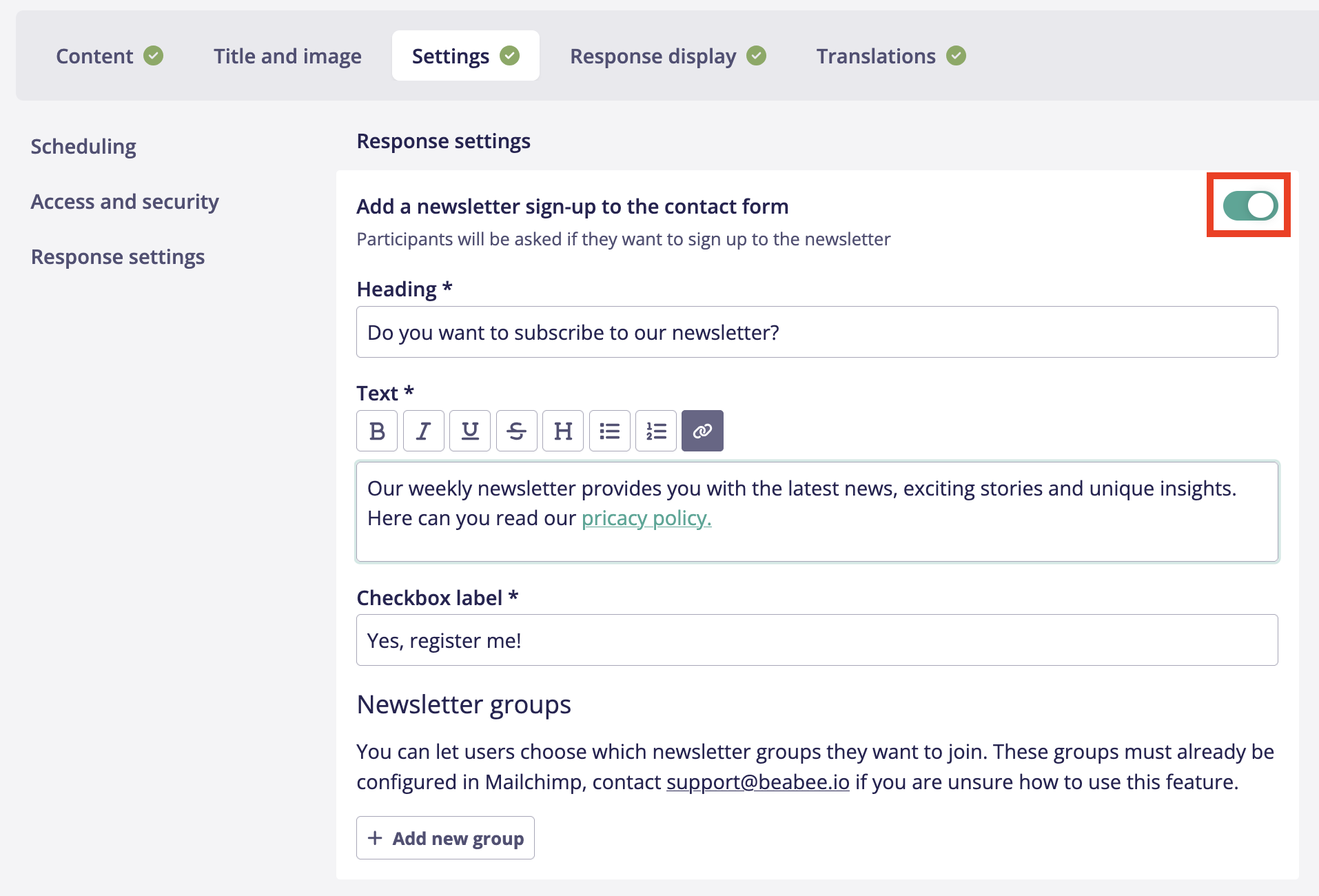
1. You can find this option in the *Settings tab* of the CrowdNewsroom, in the *Response settings* section. Just activate the toggle next to *Add a newsletter sign-up to the contact form.*
2. To set up the newsletter opt-in, you can configure a *headline*, some *body text*, and the *opt-in checkbox text.*
**NB:** The body text field is a good place to link to your privacy policy!
You can find an example here:
> When we send the newsletter, we may also track (e.g., via tracking pixels or UTM parameters) when you open emails or click on links contained in them. You can withdraw your consent at any time, for example via the unsubscribe link in the newsletter. For more information, please see our Privacy Policy.
3. When you export the CrowdNewsroom answers you can see the participants’ contact info and whether they opted-in to the newsletter subscription.
{% hint style="danger" %}
**Note:** **The contact information and newsletter sign-up fields are not displayed in the preview of your CrowdNewsroom.** While you can see the description text and the labels of the checkboxes, the actual prompts for first name, last name, and email address will only appear when you open the published link without being logged into beabee. In that case, three input fields for the contact details will automatically appear above your text – you don’t need to create separate fields for collecting contact information.
{% endhint %}
***
If you have a [**Mailchimp integration set up**](/help-center-english/onboarding-guide/set-up-newsletter-tool.md), you can also add your newsletter groups directly to the CrowdNewsroom. This will trigger the opt-in flow automatically!
1. Simply click *+ Add new group* under *Newsletter Groups*.
2. Click the *ID* field to open a drop-down menu containing all of your newsletter groups. Here, you can select the group you want to use – for example, if you send different newsletters. \
If you're not using newsletter groups yet, you can easily create them in your Mailchimp account. You can find the corresponding guide [here](/help-center-english/onboarding-guide/set-up-newsletter-tool/create-groups-in-mailchimp.md).\
Under *Label*, enter the text that should appear next to the checkbox (e.g. "Yes, please sign me up for the newsletter.").
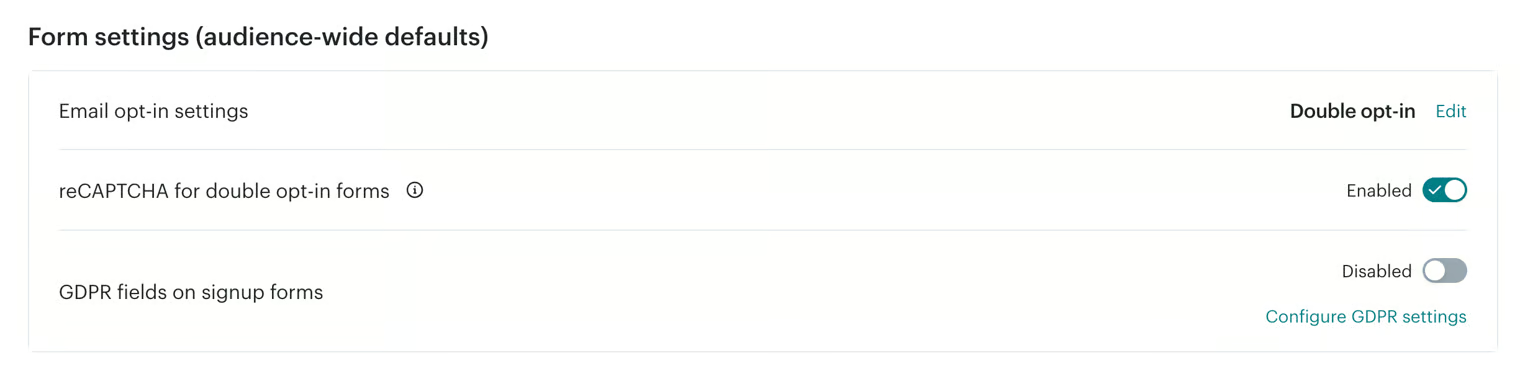
3. Don’t forget to enable Double Opt-In in Mailchimp. This ensures that people who subscribe to your newsletter receive a confirmation email to verify their email address. You can find this setting in your Mailchimp account under *Audience* → *More Options* → *Audience Settings*.\
Then, scroll down to *Form Settings* and change the email opt-in setting to *Double Opt-In*.
4. Done! All contacts who have completed the signup flow will now appear with the newsletter status *Subscribed* in both beabee and Mailchimp.
{% hint style="danger" %}
**Before publishing your CrowdNewsroom, including the newsletter sign-up, you should test it.**\
\
Make sure that you receive a double opt-in email when you participate using an email address that has not yet subscribed to your newsletter and you check the box to sign up.\
\
If you do not receive a double opt-in email, please contact .
{% endhint %}